
Enabling Computer Adaptive Testing:
Note: This can only be done by instructors or administrators. If you are a student and are unable to take computer adaptive tests, please contact your instructor.
1. Login to EMSTesting or Platinum Tests and select your Instructor role.
2. From your Instructor homepage, click on your class name and select the Edit Class button.
3. Select the Adaptive tab.
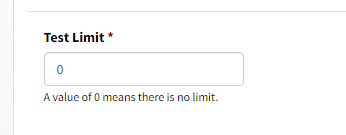
4. Enter the number of tests you want to allow your students to take in the Test Limit box. A comprehensive test counts as one test, as does a test on a single module. If you leave the default setting at 0, students can take as many tests as they want.
5. Choose the Curricula and Modules that you want your students to be able to test on.
6. Once you are satisfied with your selections, click Save. If this is a current class, any student in that class will be able to begin testing on the topics you have made available.
Note: You can go back at any time and adjust these settings as needed.
Info: If you would like to learn more about Platinum's recommendations on Computer Adaptive Testing, click here to read Computer Adaptive Tests Best Practices.