
Instructors can omit question(s) from their classes' test results. This will remove them from the overall score and the students' review (if applicable).
Contents:
A. Excluding a Question from a Test Score
B. Including Previously Excluded Questions
A. Excluding a Question from a Test Score:
1. Login to your Instructor role for EMSTesting or Platinum Tests.
2. Click on the dropdown for your class, then click on the View Gradebook button.
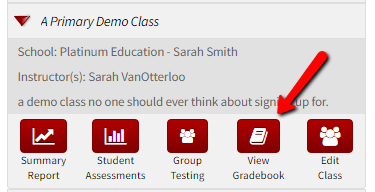
3. Scroll over until you locate your exam. Click the test title. This will bring you to your Class Tests Results page.
4. Scroll down to the Class Detailed Results section.
5. Next to each question is a checkbox. Check the box for any questions you would like to exclude from the class test results.
6. Click the Exclude Questions button near the bottom of the page after selecting questions.
Once a question is excluded, the program will recalculate the student's grades, the class averages, and the KR20/Cronbach's α values for the test.
If you want to see the questions that have been excluded from the test, you can click on the show excluded questions option in the header of the Class Detailed Results section.
When students view their results, the updated grades will appear in level 1 reporting. Levels 2 and 3 will display the data, with the excluded questions still factored in. In level 4 reporting, the question, answer, and annotation will remain visible, but it will be indicated that the question has been excluded from the test.
Note: Excluding a question from a test on the test results page does not delete it from the actual test, and it will appear on the test if the same test is administered again.
B. Including Previously Excluded Questions:
1. Login to your Instructor role for EMSTesting or Platinum Tests.
2. Click on the dropdown for your class, then click on the View Grade book button.
3. Scroll over until you locate your exam. Click the test title. This will bring you to your Class Tests Results page.
4. Scroll down to the Class Detailed Results section and click show excluded questions on the upper right of the section, so the previously excluded questions are included in the list of questions.
5. Uncheck the box next to the excluded question(s) you would like to incorporate. The excluded questions will be highlighted in red.
6. Click the Exclude Questions button to include those questions back into the test results.