
Secure testing is an application that allows instructors to administer tests remotely while ensuring that students can only have the test site open on the device they are using to take the test. (lockdown browser)
Downloading Secure Testing:
1. First, log in to your Student role and navigate to your test.
2. When you click Take Test, this will bring you to the Test Instructions page. This is where you will find the link to download secure testing.
3. Click on the download link that conforms to your computer's operating system.
4. Depending on your browser's settings, clicking a link may download the file immediately or open a window asking where you want the file saved. Once you've decided and the file is downloaded, run the file to start the application installation (shown below on Mac).
-
Mac: The file downloaded will be a zip file. When opened, it should bring up a different file named something like Install Platinum Secure Testing.pkg. Now double-click this file to install.

- If you get the prompt shown below, click continue.
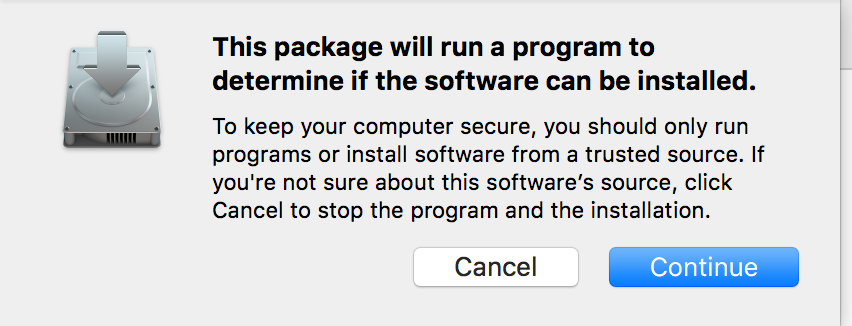
- Follow prompts with continue, next, then install.

- It may ask for your computer's administrator password to complete the installation
5. Once you get the screen below of successful installation, then go back to your test instructions page and click Begin Test at the very bottom.
Info: If you have installed secure testing, but are unable to begin test, click here to view our secure testing troubleshooting article.